There’s nothing more frustrating than sitting down to watch something and realizing your Apple TV remote suddenly stops responding. The buttons feel fine, the remote looks normal, but the screen doesn’t react. It’s a situation many people run into after software updates, Bluetooth glitches, or even something as simple as a drained battery.
The good news is that resetting the remote usually fixes the issue within seconds. I’ve had to do this a few times when the remote stopped scrolling or refused to reconnect after a restart. Once you know the exact button combination, the process is surprisingly quick. The steps vary slightly depending on the remote generation, so it helps to know which model you’re using.
Why Apple TV Remotes Sometimes Stop Working

Apple TV remotes rely on Bluetooth communication to control the device. When that connection glitches, the remote may stop responding, lag, or disconnect entirely.
Several common situations can cause this:
- Temporary Bluetooth interference from nearby devices
- Remote firmware glitches after a system update
- Low battery levels
- Apple TV restarting unexpectedly
- Pairing issues between the remote and the device
In most cases, resetting the remote simply refreshes the Bluetooth connection and restores normal control.
How To Reset Apple TV Remote (Siri Remote)

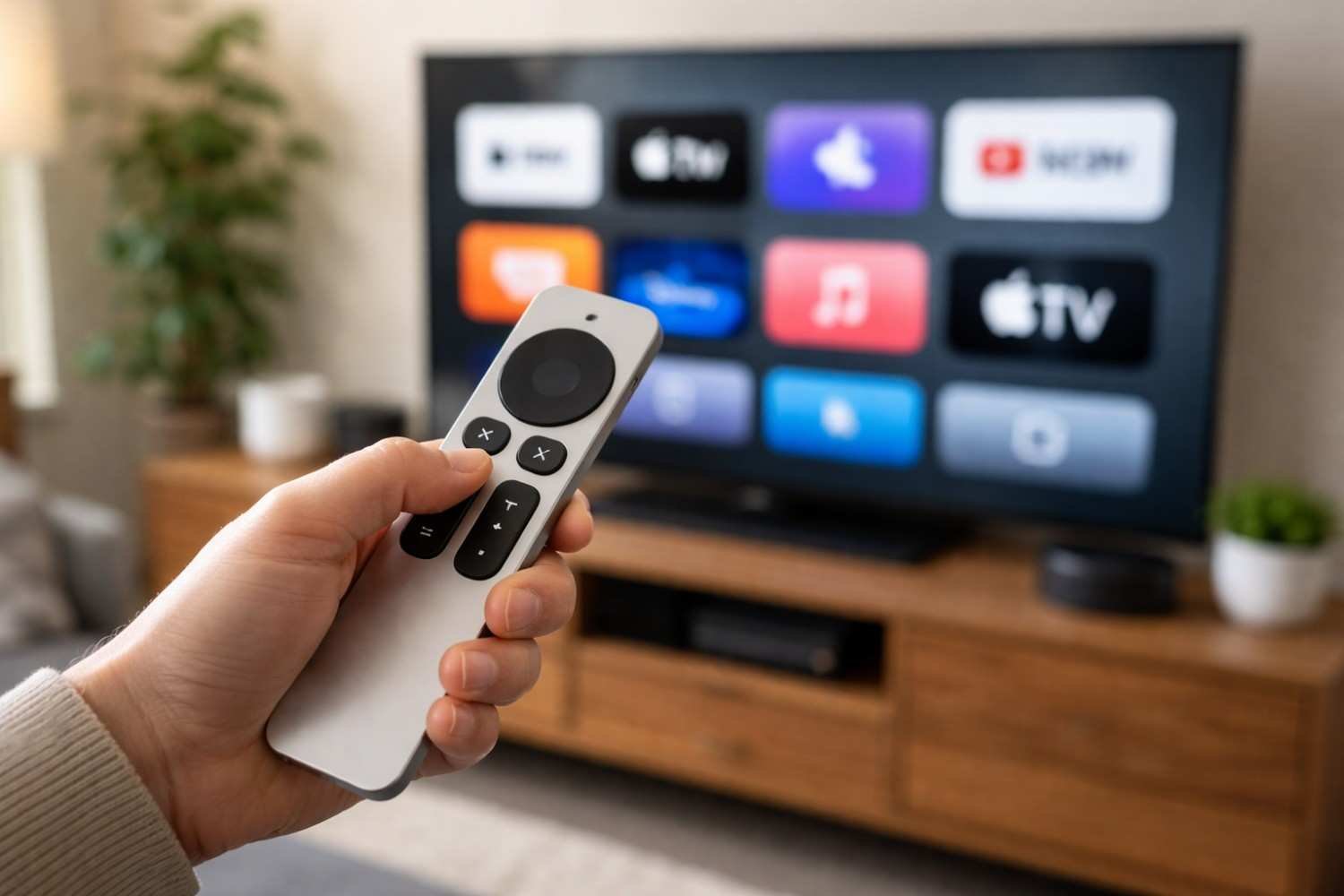
If you’re using the newer Siri Remote with the aluminum body and clickpad, the reset process takes only a few seconds.
Follow these steps:
- Press and hold the TV / Control Center button and the Volume Down (-) button at the same time.
- Keep holding both buttons for about 5 seconds.
- Watch the status light on the Apple TV box. It will briefly turn off and then flash again.
- Release the buttons and wait 5–10 seconds while the remote reconnects.
You might see a “Connection Lost” notification on the screen. A moment later, it usually changes to “Remote Connected.” That means the reset worked, and the remote has paired again automatically.
This reset essentially restarts the Bluetooth connection between the Apple TV and the Siri Remote.
How To Re-Pair The Apple TV Remote
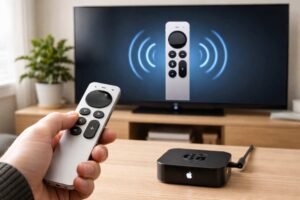
Sometimes the remote resets but doesn’t reconnect automatically. When that happens, you need to pair it manually.
The pairing process is simple and only takes a few seconds.
First, bring the remote close to the Apple TV box. Distance matters during pairing because the device needs a strong Bluetooth signal.
Then follow these steps:
- Hold the remote about 3 inches away from the Apple TV.
- Press and hold the Back (or Menu) button and the Volume Up (+) button.
- Keep holding the buttons for about 5 seconds.
A pairing notification should appear on the screen. In some cases, the device may ask you to place the remote directly on top of the Apple TV to complete the process.
Once paired, the remote should immediately regain full control.
Resetting Older Apple TV Remotes

Older Apple TV remotes work differently from newer Siri Remotes. Instead of Bluetooth, these models use infrared (IR) signals. Because of that, resetting them requires unpairing and pairing again manually.
These remotes are usually the aluminum or white models with a circular navigation pad.
To reset them, follow this process:
Unpair the remote
- Press and hold the Menu and Left buttons together.
- Hold them for about 6 seconds.
- A broken chain icon may appear on the screen, indicating the remote is unpaired.
Pair the remote again
- Press and hold the Menu and Right buttons for about 6 seconds.
- A solid chain-link icon should appear once the pairing succeeds.
Since these remotes use infrared signals, they must be pointed directly at the Apple TV during pairing.
What To Do If Resetting Doesn’t Work

In rare cases, resetting the remote doesn’t fix the issue right away. Before assuming the remote is faulty, it’s worth checking a few basic troubleshooting steps.
- Charge the remote: Connect it to a charger for at least 30 minutes. Low battery levels can cause delayed responses.
- Restart the Apple TV: Unplug the power cable for about 6 seconds, then plug it back in.
- Move closer to the device: Bluetooth connections weaken with distance or interference.
- Remove obstacles: Objects blocking the device may interfere with signals.
- Use a phone temporarily: The Apple TV Remote inside Control Center on iPhone or iPad can control the device while troubleshooting.
These small fixes often solve the problem without needing additional resets.
Frequently Asked Questions: How to Reset Apple TV Remote: A Step-by-Step Guide
1. How do I know if my Apple TV remote needs resetting?
If the remote stops responding, lags when navigating menus, or disconnects randomly, resetting the remote usually resolves the problem quickly.
2. Why does my Apple TV remote keep disconnecting?
Bluetooth interference, low battery, or pairing glitches are the most common causes. Resetting or re-pairing the remote typically restores the connection.
3. Can I control Apple TV without the remote?
Yes. You can use the Apple TV Remote inside the Control Center on an iPhone or iPad. It provides full navigation and can help reconnect the physical remote.
4. How long does it take to reset the Apple TV remote?
The reset itself takes about 5 seconds, and the reconnection usually happens within 10 seconds after releasing the buttons.
Final Thoughts
Apple TV remotes are generally reliable, but occasional connection glitches can happen. Fortunately, resetting the remote is one of the simplest fixes and usually restores control almost immediately. Whether it’s an Apple Watch, Bluetooth Siri Remote or an older infrared model, the steps are straightforward once you know the correct button combinations.
If the remote still refuses to connect after resetting and pairing again, checking the battery or restarting the Apple TV often resolves the issue. Most of the time, the solution is just a quick reset away.