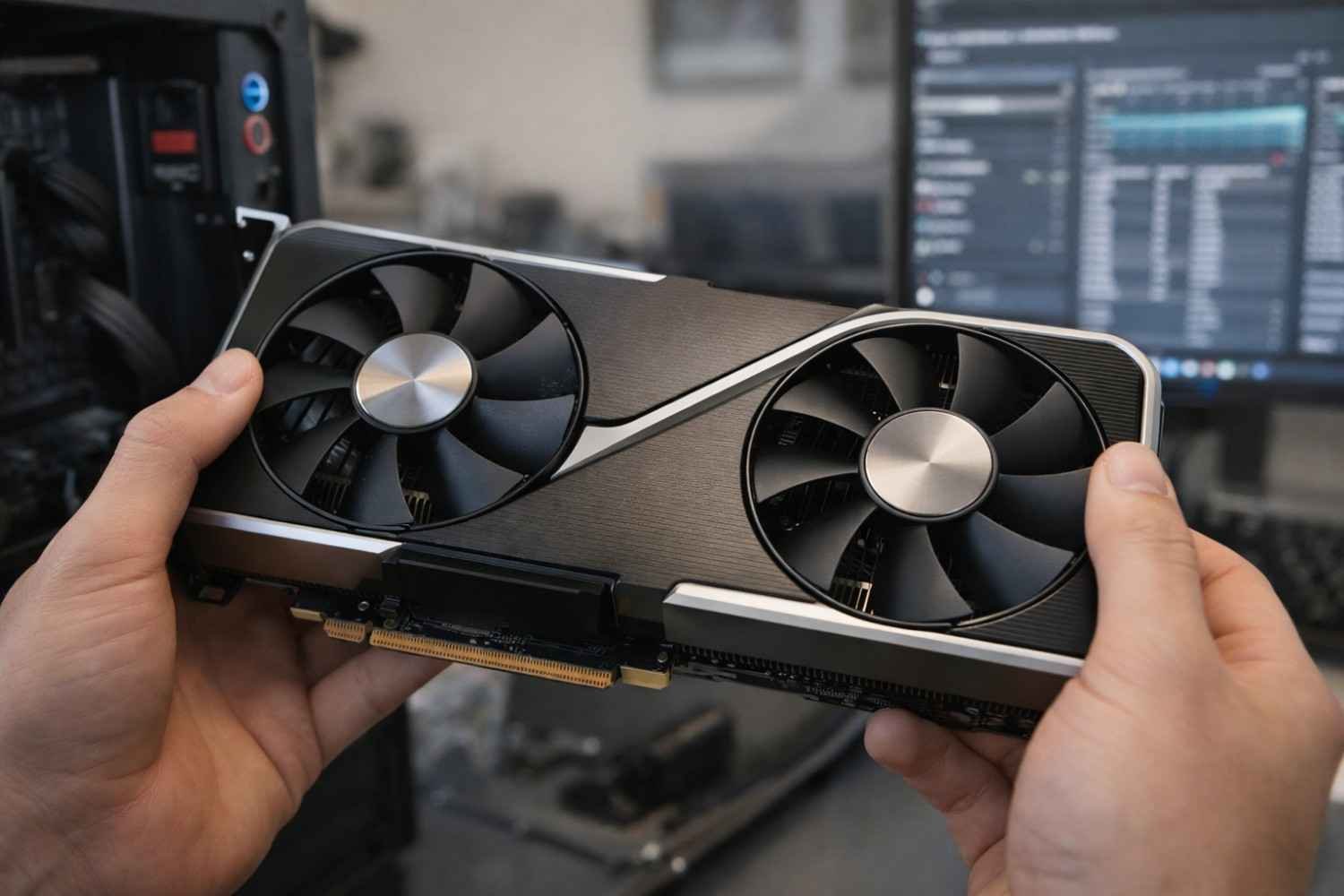
Graphics problems usually show up at the worst possible moment. You might be editing a project, watching a video, or deep into a game when suddenly the screen flickers, freezes, or goes completely black. Many people assume the graphics card is failing, but in reality, the issue is often just a driver glitch.
I’ve seen this happen multiple times while testing different GPUs and updating drivers. Instead of restarting the whole system or panicking about hardware damage, resetting the graphics card driver often fixes the problem instantly. The good news is that there are several simple ways to do it, ranging from a quick keyboard shortcut to a clean driver reinstall.
Why Resetting Your Graphics Card Sometimes Fixes Display Issues
Modern graphics cards rely heavily on drivers to communicate with the operating system and applications. When the driver crashes or becomes unstable, the GPU can stop responding properly. This leads to issues like screen flickering, freezing, lag during games, or applications crashing.
Resetting the graphics driver refreshes that communication layer. It forces the system to reload the GPU driver without necessarily restarting the entire computer. In many cases, this immediately resolves temporary glitches caused by updates, software conflicts, or heavy GPU workloads.
Common problems that a graphics card reset can fix include:
- Screen flickering or temporary black screens
- Game crashes or sudden frame drops
- Frozen displays while using demanding software
- Driver crashes after updates
- GPU not being detected correctly
If these issues happen occasionally, a simple reset is often enough.
The Fastest Way to Reset a Graphics Card
The quickest method to reset the GPU driver takes only a second and works on most modern Windows systems.
Press the following keys together:
Win + Ctrl + Shift + B
Your screen will briefly flicker or turn black, and you might hear a short beep. This indicates that the graphics driver has restarted successfully. The system refreshes the display pipeline without closing your open applications.
This shortcut is incredibly useful when the screen freezes, but the system is still running in the background. Many developers and gamers rely on this trick to recover from minor GPU crashes without restarting their entire machine.
However, if the display remains frozen after using this shortcut, you may need to reset the graphics driver manually.
Reset Graphics Card Using Device Manager
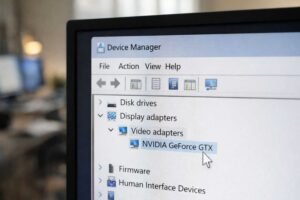
When the keyboard shortcut does not work, the next step is to manually restart the graphics driver through Device Manager. This method essentially disables and re-enables the graphics adapter.
Steps to reset the graphics driver
- Right-click the Start button.
- Select Device Manager from the menu.
- Expand the Display adapters section.
- Right-click your graphics card (NVIDIA, AMD, or Intel).
- Select Disable device and confirm.
- Wait a few seconds.
- Right-click the GPU again and select Enable device.
When the device is re-enabled, the system reloads the graphics driver. Your screen may flicker for a moment while the driver initializes again.
This method works well when the driver becomes unstable after installing software, updating Windows, resetting the Xfinity router, or switching display configurations.
Reset Graphics Settings to Factory Defaults
Sometimes the issue isn’t the driver itself but incorrect GPU settings. Overclocking, custom performance profiles, or experimental graphics tweaks can destabilize the system.
Restoring factory settings in the GPU control panel resets all custom configurations.
Reset settings for common graphics cards
NVIDIA Graphics Cards
- Right-click the desktop
- Open NVIDIA Control Panel
- Select Manage 3D Settings
- Click Restore Defaults
AMD Graphics Cards
- Right-click the desktop
- Open AMD Software
- Go to Settings
- Choose System
- Click Factory Reset
Intel Integrated Graphics
- Open Intel Graphics Command Center
- Navigate to System
- Select Restore to Default
Resetting these settings removes unstable profiles or aggressive performance tweaks that may cause crashes or visual glitches.
Perform a Clean Graphics Driver Reinstall
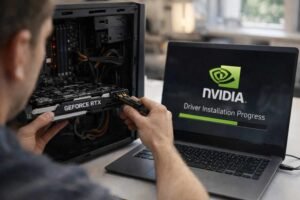
If graphics problems continue even after resetting the driver, the issue may be corrupted driver files. A clean reinstall removes all leftover components and installs a fresh driver.
This process is slightly more advanced but often resolves persistent GPU issues.
Steps for a clean reinstall
- Download the latest graphics driver from the official GPU manufacturer’s website.
- Download Display Driver Uninstaller (DDU).
- Restart the computer in Safe Mode.
- Launch DDU and select your GPU brand.
- Click Clean and Restart.
- After rebooting, install the new driver you downloaded.
Using DDU ensures that old driver files, registry entries, and cached settings are completely removed before installing a new driver. This can fix stubborn driver crashes or compatibility problems.
When You Should Reset Your Graphics Card
A graphics driver reset is not something you need to do regularly. It is primarily a troubleshooting step when something goes wrong with the display or GPU performance.
You should consider resetting the graphics card if you experience:
- Random screen flickering during normal use
- Games are crashing after driver updates
- Sudden performance drops or stuttering
- Black screens when launching graphics-heavy applications
- Driver timeout errors
If these issues happen frequently, even after resetting the driver, it might indicate deeper software conflicts or failing hardware.
Preventing Future Graphics Driver Problems
While occasional GPU resets are normal, frequent driver crashes usually point to configuration issues.
A few habits can reduce graphics-related problems significantly:
- Keep graphics drivers updated, but avoid installing unstable beta releases
- Avoid aggressive GPU overclocking unless stability is tested
- Install drivers from official manufacturer sources only
- Remove old drivers properly before switching GPU brands
- Keep system updates consistent
Stable drivers and proper GPU settings dramatically reduce the chances of crashes or display glitches.
FAQs: How to Reset Graphics Card: A Step-by-Step Guide
1. How do I quickly reset my graphics card?
Press Win + Ctrl + Shift + B. The screen will flicker briefly while the graphics driver restarts. This is the fastest way to refresh the GPU driver without restarting the computer.
2. Does resetting the graphics card damage the GPU?
No. Resetting the graphics driver only refreshes the software controlling the GPU. It does not affect the hardware or cause any physical damage.
3. Why does my graphics driver keep crashing?
Driver crashes can happen due to outdated drivers, software conflicts, unstable overclock settings, or corrupted driver files. Reinstalling the driver often resolves the issue.
4. When should I reinstall my graphics driver?
You should reinstall the driver if resetting it does not fix the problem, especially when experiencing repeated crashes, black screens, or severe performance issues.
Final Thoughts
Graphics driver issues can feel frustrating, especially when they interrupt work or gaming sessions. The good news is that most display glitches are software-related rather than hardware failures. A quick reset, driver refresh, or settings reset can often restore stability within seconds.
Learning these simple troubleshooting methods can save a lot of time and prevent unnecessary worry about your graphics card. When problems do appear, starting with the easiest reset methods usually gets things running smoothly again.