Smart lighting works beautifully when everything connects the way it should. But if you’ve ever opened the Hue app and noticed your lights not responding, rooms disappearing, or automations suddenly failing, it can quickly become frustrating. Many smart-home users run into these moments after router changes, network glitches, or device migrations.
Resetting the Hue Bridge is often the cleanest way to restore order. It wipes the system back to factory settings so the bridge can reconnect to lights and integrations like Alexa, Google Home, or Apple HomeKit without leftover configuration problems. The process is simple, but understanding when and how to do it properly can save hours of troubleshooting.
Understanding What Happens When You Reset a Hue Bridge
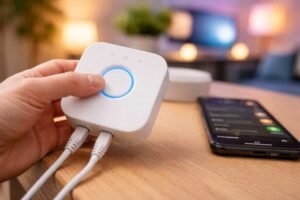
The Hue Bridge is essentially the brain of the lighting system. It connects smart bulbs, light strips, and accessories through a Zigbee network while communicating with the router through Ethernet. Every scene, room configuration, and automation lives inside that bridge.
When you perform a factory reset, the bridge returns to its original out-of-box state. That means:
- All paired lights are removed
- Rooms and zones disappear
- Scenes and automations are deleted
- Voice assistant connections are disconnected
Think of it as wiping a phone before setting it up again. The hardware stays the same, but the configuration starts fresh.
Resetting becomes useful when persistent connectivity issues appear or when preparing the system for a new home or owner.
When Resetting the Hue Bridge Actually Makes Sense
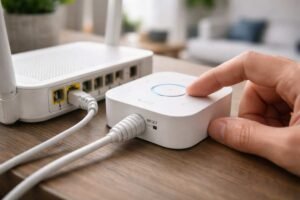
Many people jump straight to a factory reset when the lights stop responding. In reality, several issues can be solved with simpler fixes. A reset should usually be the last step after other troubleshooting attempts.
Situations where a reset genuinely helps include:
- The Hue app cannot detect the bridge even though it is powered on
- Lights refuse to pair after multiple attempts
- Automations and scenes are corrupted or missing
- Network changes caused communication problems
- The system is being transferred or sold
For example, someone moving into a new apartment might connect their Hue Bridge to a new router and discover that the app cannot locate it anymore. Resetting the bridge often clears the old network configuration and allows the system to rebuild correctly.
How To Reset Hue Bridge Using The Physical Button
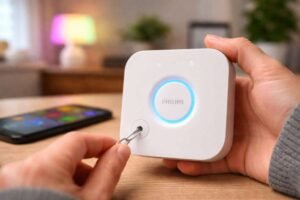
Locate the Restore Factory Settings Button
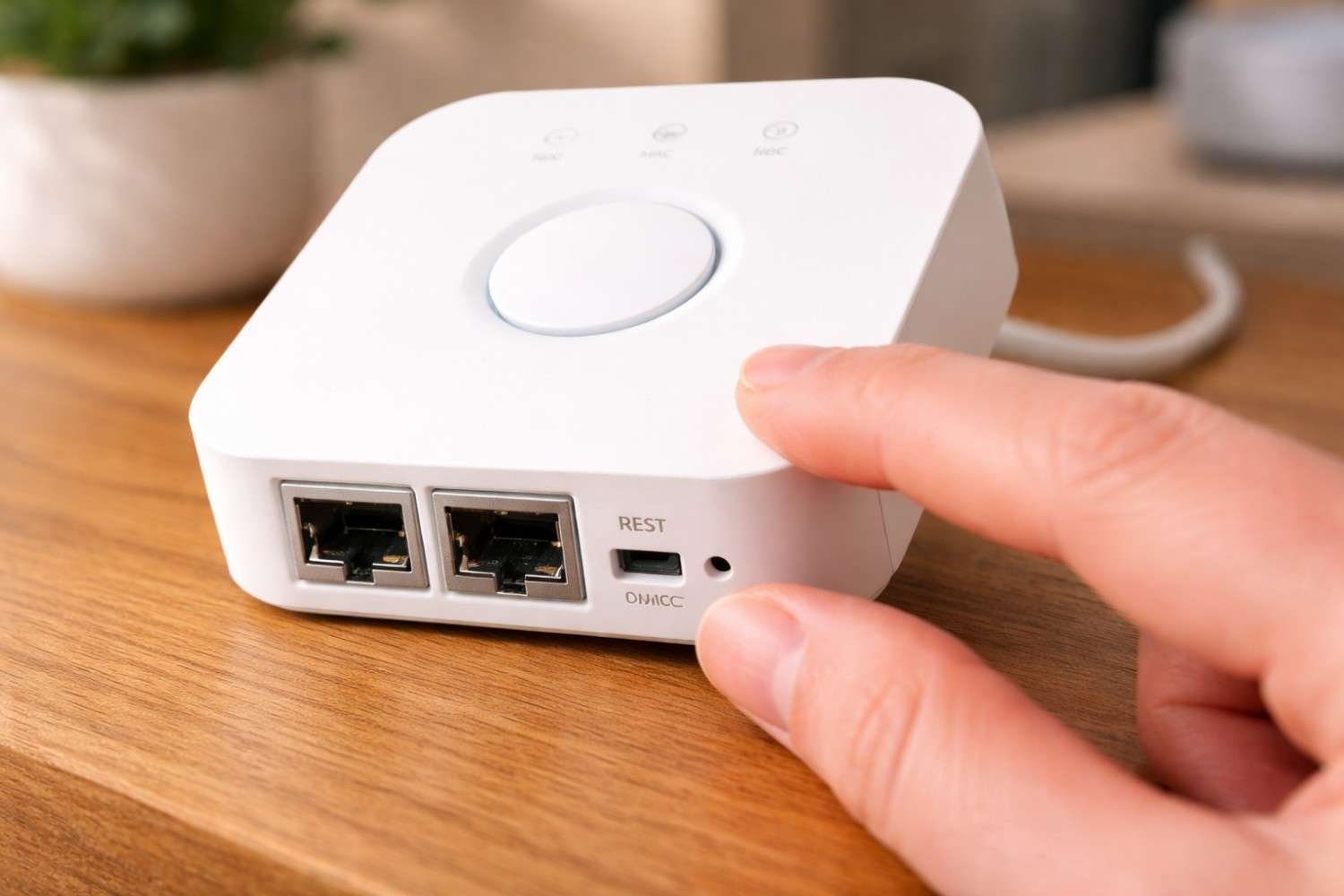
Flip the bridge over and look for a small recessed hole labeled Restore Factory Settings or Reset. Because the button sits inside the casing, you’ll need a small pointed tool to reach it.
A paperclip or SIM card removal pin usually works perfectly.
Perform the Factory Reset
Follow these steps carefully to reset the device:
- Make sure the bridge is powered on
- Optionally, unplug the Ethernet cable for a cleaner reset
- Insert a paperclip into the reset hole
- Press and hold the button for 5–10 seconds
- Watch the LED indicators on the front of the bridge
The lights will begin blinking, which signals that the reset process has started.
Wait for the Bridge to Reboot
Once the LEDs stop blinking and remain solid, the bridge has completed the reset process. At that point, it behaves like a brand-new device waiting for setup.
You can now open the Hue app and start reconnecting the system.
Resetting the Bridge Through the Hue App
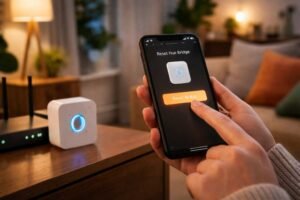
In some cases, the bridge can also be removed through the app interface. This method is often used when someone plans to sell or give away their smart lighting setup.
Steps usually include navigating through the settings section and deleting the bridge from the system. Once removed, the bridge disconnects from the account and can be configured again later.
However, if the bridge is experiencing serious connectivity problems, the physical reset button is usually the more reliable option.
Setting Up the Hue Bridge Again After Reset
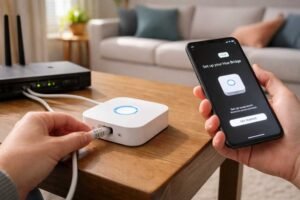
After the reset is complete, the entire lighting system must be rebuilt. While this may sound time-consuming, the setup process typically moves quickly if all bulbs are already powered on.
Start by opening the Hue app and selecting Add Bridge. The app will search the network for the device. When it finds the bridge, press the large circular Link button on top to confirm the connection.
Next comes reconnecting the bulbs.
Go into the lights section and start a search. Most bulbs are detected automatically. If a light doesn’t appear, you can manually enter the 6-digit serial number printed on the bulb.
Finally, reconnect integrations such as voice assistants or smart home platforms. This step restores voice commands and automations.
Troubleshooting Hue Bridge Problems Before Resetting
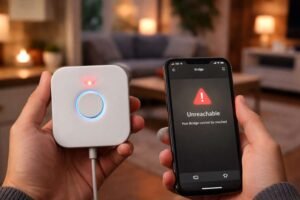
Sometimes a factory reset of network settings is unnecessary. A few simple checks can resolve many connectivity issues without deleting your entire configuration.
Common troubleshooting steps include:
- Power toggle: unplug the bridge for about 30 seconds and plug it back in
- Check Ethernet connection: ensure the cable is firmly connected to the router
- Verify indicator lights:
- Left LED shows power
- The middle LED shows the router connection
- The right LED shows internet connectivity
- Router configuration: Confirm that DHCP is enabled so the bridge can receive an IP address
If the Hue app still cannot detect the bridge, entering the device’s IP address manually can sometimes restore communication.
Common Mistakes People Make During a Reset
Even though the reset process is straightforward, a few mistakes can interrupt the setup.
One frequent issue is releasing the reset button too early. Holding it for the full 5–10 seconds ensures the reset actually triggers.
Another problem occurs when lights are turned off during the re-pairing stage. Smart bulbs must remain powered on so the bridge can detect them.
Network configuration can also cause confusion. If the bridge connects to a router but the app cannot find it, the router may have assigned a new IP address that the app hasn’t recognized yet.
Taking a moment to verify the router connection usually resolves the problem quickly.
FAQs: How to Reset Hue Bridge: A Complete Guide to Getting Your Philips Hue Devices Back on Track
1. How long does it take to reset a Hue Bridge?
The physical reset itself takes about 10 seconds. After that, the bridge usually takes another minute to reboot and become ready for setup.
2. Will resetting the Hue Bridge delete all lights?
Yes. A factory reset removes every paired light, room configuration, scene, and automation. The system must be rebuilt from scratch afterward.
3. Can you reset the Hue Bridge without the reset button?
In some situations, the bridge can be removed through the Hue app settings. However, if the bridge is unresponsive or cannot connect to the network, the physical reset button is required.
4. Why can’t the Hue app find my bridge after resetting?
This usually happens due to network configuration issues. Checking the Ethernet cable, router settings, or manually entering the bridge’s IP address often solves the problem.
Final Thoughts
Resetting the Hue Bridge might sound like a drastic step, but it often becomes the fastest way to fix stubborn smart-lighting issues. When network changes, firmware glitches, or pairing errors start stacking up, starting fresh clears out hidden conflicts and allows the system to rebuild cleanly. Many smart-home enthusiasts eventually perform at least one reset during the lifetime of their setup.
Once the bridge reconnects and the lights pair again, the system usually returns to the smooth, reliable experience that makes smart lighting so satisfying.