
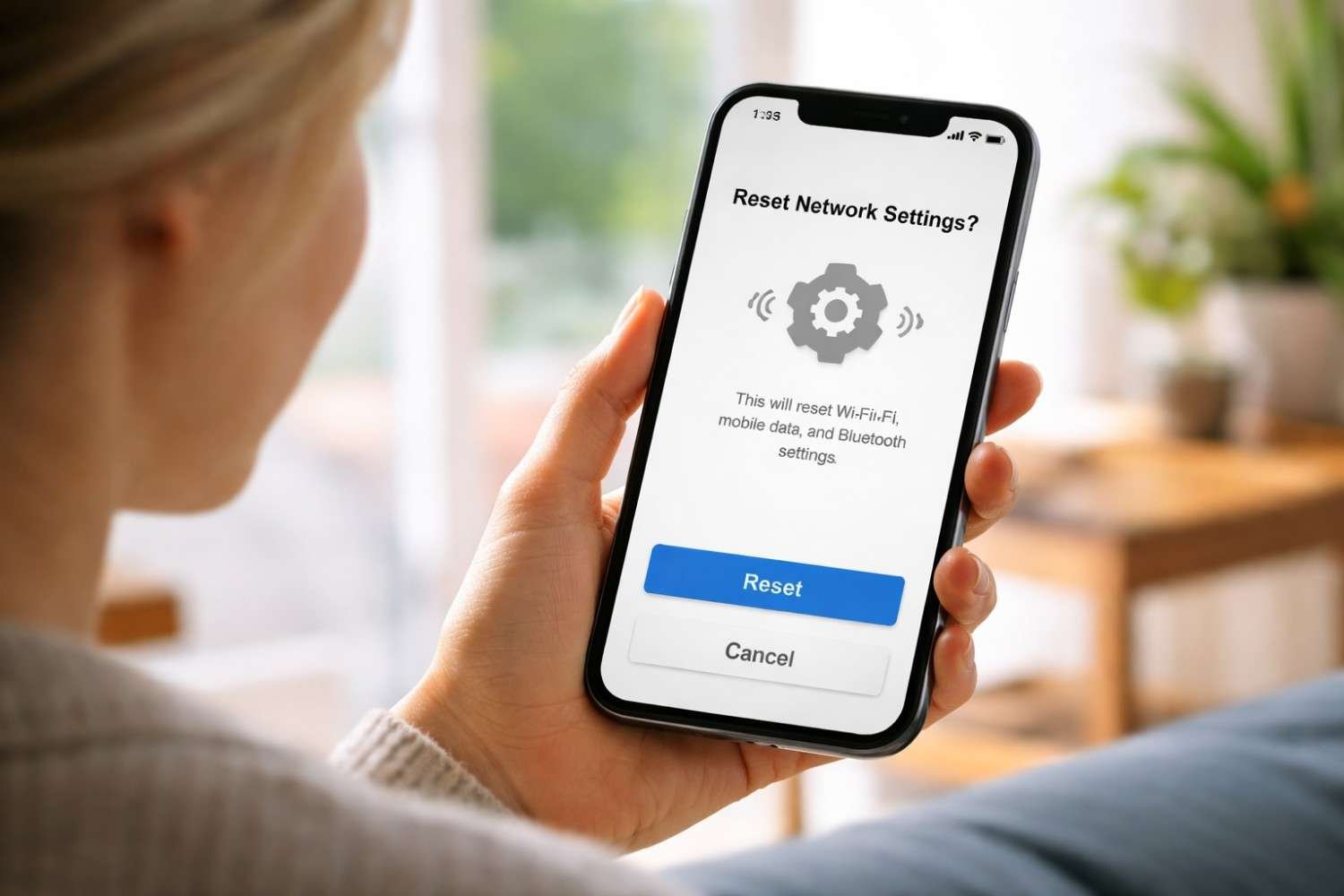
Network problems can be strangely frustrating. One moment everything works fine, and the next your phone refuses to connect to Wi-Fi, Bluetooth devices stop pairing, or mobile data suddenly feels unreliable. When that happens, one troubleshooting option that often appears in device settings is reset network settings.
Most people hesitate before tapping that option because it sounds serious. The word “reset” makes it feel like something important might disappear. In reality, resetting network settings is much more targeted. It focuses only on connectivity configurations and leaves the rest of your phone untouched.
Understanding exactly what this reset does and when it actually helps can save time and prevent unnecessary troubleshooting.
What Happens When You Reset Network Settings

When you reset network settings, the device clears all stored networking configurations and restores them to their default state. Over time, phones accumulate many network preferences, saved passwords, and device pairings. If one of these becomes corrupted or conflicts with another configuration, connectivity issues can appear.
A network reset removes those stored settings and rebuilds the connection environment from scratch. This often resolves problems such as Wi-Fi refusing to connect, Bluetooth pairing failures, or mobile data behaving unpredictably.
Instead of troubleshooting each network component individually, the reset essentially gives your phone a clean networking slate.
What Gets Deleted After Resetting Network Settings

One important thing to understand is that a network reset removes saved connectivity information, not personal data. After the reset, you simply reconnect to networks and devices again.
Here are the main things that get removed or restored to default:
- Saved Wi-Fi networks and passwords – Every stored network name and password is erased. You will need to reconnect manually.
- Bluetooth pairings – Headphones, smartwatches, speakers, and vehicle systems are removed and must be paired again.
- VPN configurations – Any manually configured VPN profiles are deleted.
- APN settings – Access Point Name configurations used for mobile data revert to default carrier settings.
- Mobile data preferences – Settings like preferred network types, roaming configurations, and cellular data limits are reset.
- Custom connectivity preferences – Any network customization applied by the user returns to factory defaults.
After the reset completes, your phone behaves as if it has never connected to any wireless network or Bluetooth device before.
What Does Not Get Deleted
Many people worry that resetting network settings will wipe important information. Fortunately, it does not affect anything outside connectivity.
Your phone keeps all personal content and most system settings exactly as they were before.
These remain untouched:
- Photos and videos
- Messages and contacts
- Apps and app data
- Device storage files
- Home screen layout and wallpapers
- Carrier account information and mobile plan
This is why network resetting is considered a safe troubleshooting step. It only affects how the device connects to networks, not the data stored on the phone.
Why Resetting Network Settings Fixes Connectivity Problems

Phones rely on multiple networking components working together: Wi-Fi configuration files, Bluetooth pairing data, mobile network preferences, and background services that manage connections.
If one of these components becomes corrupted, outdated, or misconfigured, connection problems can occur. For example:
- A Wi-Fi password might be saved incorrectly
- A Bluetooth pairing profile may become unstable
- Network preferences may conflict with carrier updates
- Old configurations might interfere with new connections
Resetting network settings clears these stored configurations and forces the system to rebuild them. This fresh setup often resolves persistent connectivity issues that standard troubleshooting cannot fix.
It’s similar to restarting a computer’s networking stack. Instead of trying to identify exactly which setting is causing the issue, the system simply removes all network configurations and starts again.
When You Should Reset Network Settings

Resetting network settings is not something people use every day, but it becomes helpful in specific situations.
Common scenarios where this reset can help include:
- Wi-Fi connects, but internet access does not work
- Bluetooth devices refuse to pair or frequently disconnect
- Mobile data stops working even though the signal is strong
- The phone cannot detect available networks
- Network switching between Wi-Fi and cellular behaves incorrectly
- Connectivity problems continue even after restarting the phone
In many cases, a network reset resolves issues that simple fixes like restarting Onn Tablet or toggling aeroplane mode cannot solve.
When You Should Avoid Resetting Network Settings

Although the reset is safe, it can still be inconvenient because it removes all saved connections. If your phone stores dozens of Wi-Fi passwords or many Bluetooth devices, reconnecting everything again can take time.
Before performing the reset, it usually makes sense to try simpler troubleshooting steps first:
- Restart the device
- Toggle Wi-Fi or Bluetooth off and back on
- Forget and reconnect to a single Wi-Fi network
- Update the operating system
- Check for carrier settings updates
If those steps do not solve the issue, resetting network settings becomes a practical next step.
How to Reset Network Settings
The exact path depends on the device, but the process is straightforward.
Typical navigation paths:
- iPhone
Settings → General → Transfer or Reset iPhone → Reset → Reset Network Settings. - Android devices
Settings → System → Reset Options → Reset Wi-Fi, Mobile & Bluetooth - Samsung devices
Settings → General Management → Reset → Reset Network Settings.
After confirming the reset, the device restarts its network configurations. Once completed, you can reconnect to Wi-Fi networks and re-pair Bluetooth devices.
FAQs: What Does Reset Network Settings Do
1. Why would someone reset network settings?
People usually reset network settings to fix persistent connectivity problems. It helps resolve issues with Wi-Fi, Bluetooth pairing, and mobile data that standard troubleshooting cannot fix.
2. Does resetting network settings delete Wi-Fi passwords?
Yes. All saved Wi-Fi networks and passwords are removed during the reset. Afterwards, you must reconnect to networks and enter the passwords again.
3. Will resetting network settings delete photos or apps?
No. The reset only affects connectivity settings. Photos, apps, messages, and other personal data remain unchanged.
4. How long does a network reset take?
The reset usually takes less than a minute. Once completed, the phone immediately returns to normal use, but you will need to reconnect to networks manually.
Final Thoughts
Resetting network settings is one of those troubleshooting features that sounds more dramatic than it actually is. It does not wipe your phone or remove personal files. Instead, it simply clears stored connectivity configurations so the device can rebuild them from scratch. When Wi-Fi refuses to connect, Bluetooth pairing becomes unreliable, or mobile data behaves inconsistently, this reset often resolves the problem quickly.
That said, it should usually come after basic troubleshooting steps. Restarting the device or reconnecting to a network can sometimes solve the issue without removing saved settings. But when connectivity problems persist, resetting network settings can restore stable connections with minimal effort.