Tablets usually run quietly in the background of daily life. They handle streaming, browsing, school apps, and casual gaming without much attention. But when a tablet suddenly freezes, refuses to unlock, or gets stuck on the startup screen, it quickly becomes frustrating. Many people assume the device is broken when that happens, but in reality, the solution is often much simpler.
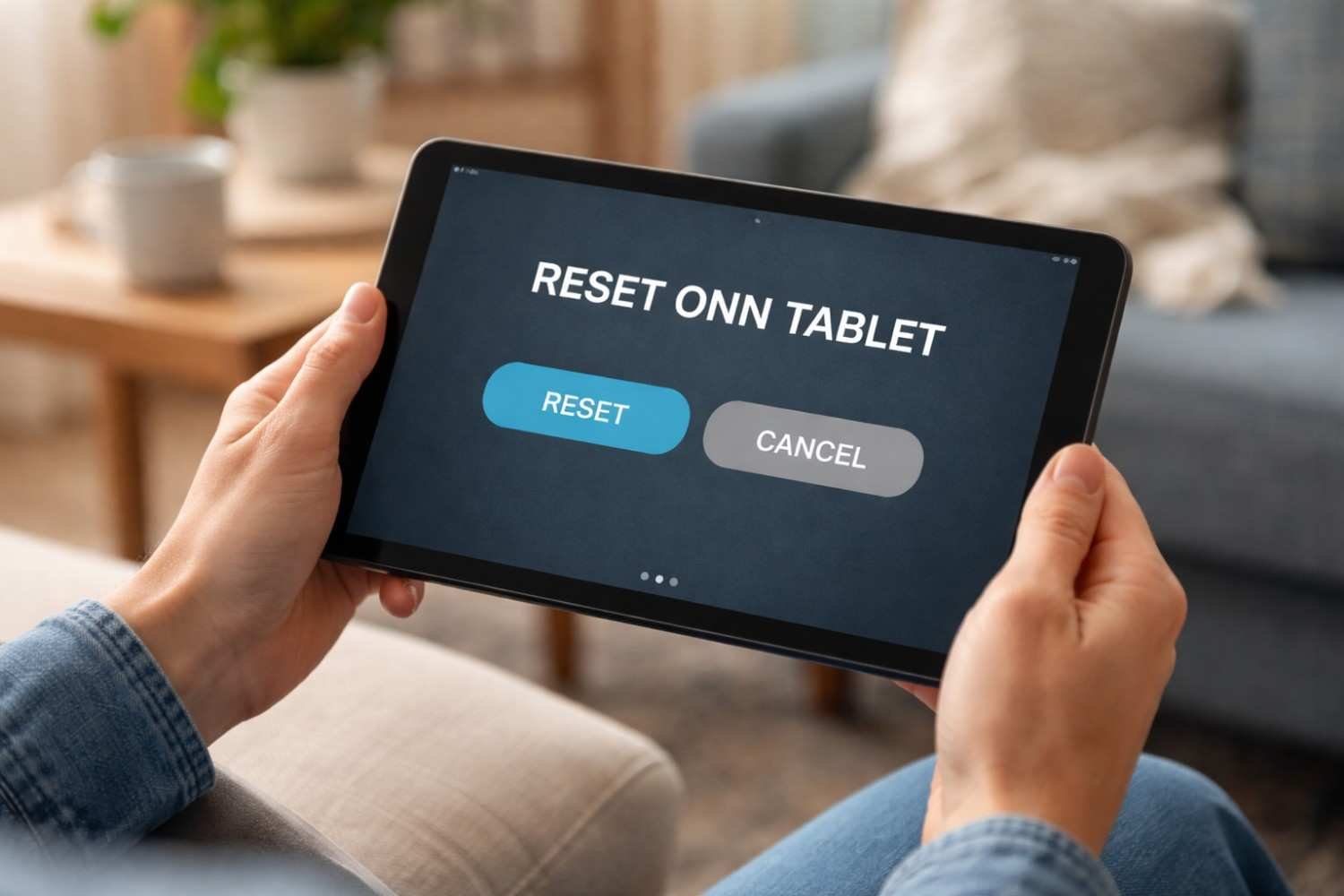
Resetting the tablet can solve many of these issues. A reset clears stored data and restores the device to its original system state. Whether the tablet has become slow over time, apps keep crashing, or you’re locked out because you forgot the password, learning how to reset an Onn tablet is one of the most practical troubleshooting skills you can have.
When You Should Reset an Onn Tablet

Most tablets gradually accumulate cached data, app updates, and background processes. Over time, this can slow the device down or cause system glitches. A reset clears those problems and gives the system a fresh start.
There are several common situations where resetting the tablet becomes necessary.
- The tablet freezes frequently or becomes extremely slow
- Apps crash repeatedly or fail to open
- The tablet is stuck on the startup logo
- The screen lock password or PIN is forgotten
- You want to erase personal data before selling the device
A reset is essentially a system refresh. It removes user data and restores the original software configuration that came with the tablet.
Reset Onn Tablet Through Settings

If your tablet is still working normally and you can access the home screen, the easiest way to reset it is through the system settings. This method is commonly used when someone wants to clear the device or prepare it for a new user.
Start by opening the Settings app from the home screen or app drawer. Scroll until you find the System section, then tap Reset options. Inside that menu, you will see the option labeled Erase all data (factory reset).
After selecting it, the tablet will display a warning explaining that all personal data will be removed. Confirm the reset by tapping Reset tablet or Erase everything. If the device has a screen lock, you may need to enter your PIN or pattern to continue.
Once confirmed, the tablet will restart and begin the reset process. The device may take several minutes to erase files and restore system settings. When it finishes, the setup screen will appear just like it did when the tablet was first turned on.
Hard Reset Onn Tablet Using Recovery Mode

Sometimes the tablet cannot be unlocked or the operating system stops responding entirely. This can happen if the password is forgotten, the system crashes during startup, or the tablet becomes stuck on the logo screen.
In those situations, the reset must be done using Recovery Mode, which is a built-in Android troubleshooting menu accessed through hardware buttons.
To start, power off the tablet completely. Once the device is off, press and hold the Power button and Volume Up button at the same time. Continue holding both buttons until the tablet logo appears. When the logo shows up, release the Power button but keep holding Volume Up until the recovery menu appears.
After restarting, the tablet will load the setup screen again, allowing you to configure it like a new device.
Force Restart When the Tablet Is Frozen

Not every system problem, like the Apple TV remote, requires a full reset. Sometimes the tablet simply becomes unresponsive due to a temporary software glitch.
If the screen is frozen and nothing responds, a force restart may fix the issue without deleting any data.
Press and hold the Power button for about 10-15 seconds. The device will shut down and restart automatically. Once the system reloads, most temporary freezes are resolved.
A force restart is always worth trying before performing a full factory reset.
Important Things to Know Before Resetting
Before resetting any tablet, it helps to understand what will happen during the process. A factory reset completely removes personal information stored on the device.
This includes:
- Installed apps
- Photos and videos
- Saved Wi-Fi networks
- Downloaded files
- Personal settings and app data
Because of this, it is always a good idea to back up important files before performing a reset.
Another important detail involves Factory Reset Protection, a security feature built into Android devices. If the tablet previously had a Google account signed in, the system will ask for that same account during setup after the reset. This prevents someone from resetting and using a device that does not belong to them.
Troubleshooting Reset Issues

In most cases, the reset process works smoothly, but occasionally users encounter small issues while attempting it. These problems are usually easy to fix.
For example, if the recovery menu does not appear, the button combination may not have been held long enough. Make sure the tablet is completely powered off before trying again.
Battery level can also affect the process. A device with very low power may refuse to reset properly, so charging the tablet to at least half capacity helps avoid interruptions.
If the tablet repeatedly restarts without entering recovery mode, try repeating the button combination carefully. Timing the release of the Power button when the logo appears often solves the issue.
FAQs: How to Reset Onn Tablet
1. How do I reset an Onn tablet if I forgot the password?
You can reset the tablet using recovery mode. Turn the device off, hold the Power and Volume Up buttons together, enter the recovery menu, and choose the factory reset option.
2. Will resetting an Onn tablet fix performance issues?
Yes. A factory reset removes problematic apps, corrupted data, and system glitches that can slow the tablet down or cause crashes.
3. Does a factory reset delete everything on the tablet?
Yes. A factory reset erases all personal data including apps, photos, downloads, and settings stored on the device.
4. How long does it take to reset an Onn tablet?
Most factory resets take between three and ten minutes, depending on the tablet model and the amount of stored data.
Final Thoughts
Knowing how to reset an Onn tablet can save a lot of frustration when software problems appear. Tablets often slow down or behave unpredictably after months of updates, new apps, and stored data. Performing a reset clears those issues and gives the operating system a clean start. Whether you use the settings menu or recovery mode, the process is straightforward once you understand the steps.
Most of the time, a reset brings the tablet back to normal performance. Just remember to back up important files before starting so nothing important is lost.