Smartwatches are supposed to make life easier. Track workouts, check messages, control music, and keep daily routines organized from the wrist. But like any tech device, things sometimes go wrong. Apps crash, the watch freezes, or the battery suddenly drains faster than usual. When that happens, a reset often becomes the simplest fix.
Many people hesitate before resetting their smartwatch because it sounds drastic. The truth is, it is a normal troubleshooting step. A reset simply restores the watch to its original factory state. It removes personal data, clears glitches, and often brings the device back to smooth performance. Knowing how to reset a Samsung watch can save time and frustration when problems start piling up.
Why You Might Need To Reset Your Samsung Watch

Most people don’t reset their Galaxy smartwatch unless something stops working properly. Over time, installed apps, software updates, and stored data can slow down the device or cause minor bugs.
Common situations where resetting helps include:
- The watch becomes slow or unresponsive
- Apps keep crashing or freezing.
- The watch won’t connect to the phone.
- Battery life suddenly drops faster than normal.
- You plan to sell or give away the watch.
- The screen is locked, and the PIN is forgotten.
A reset clears temporary software issues that sometimes build up in wearable devices. In many cases, it restores the watch to the same performance level it had when it was first set up.
How To Reset a Samsung Watch From Settings

The easiest way to reset a Samsung watch is directly from the device settings. This method works for most Galaxy Watch models and only takes a few moments.
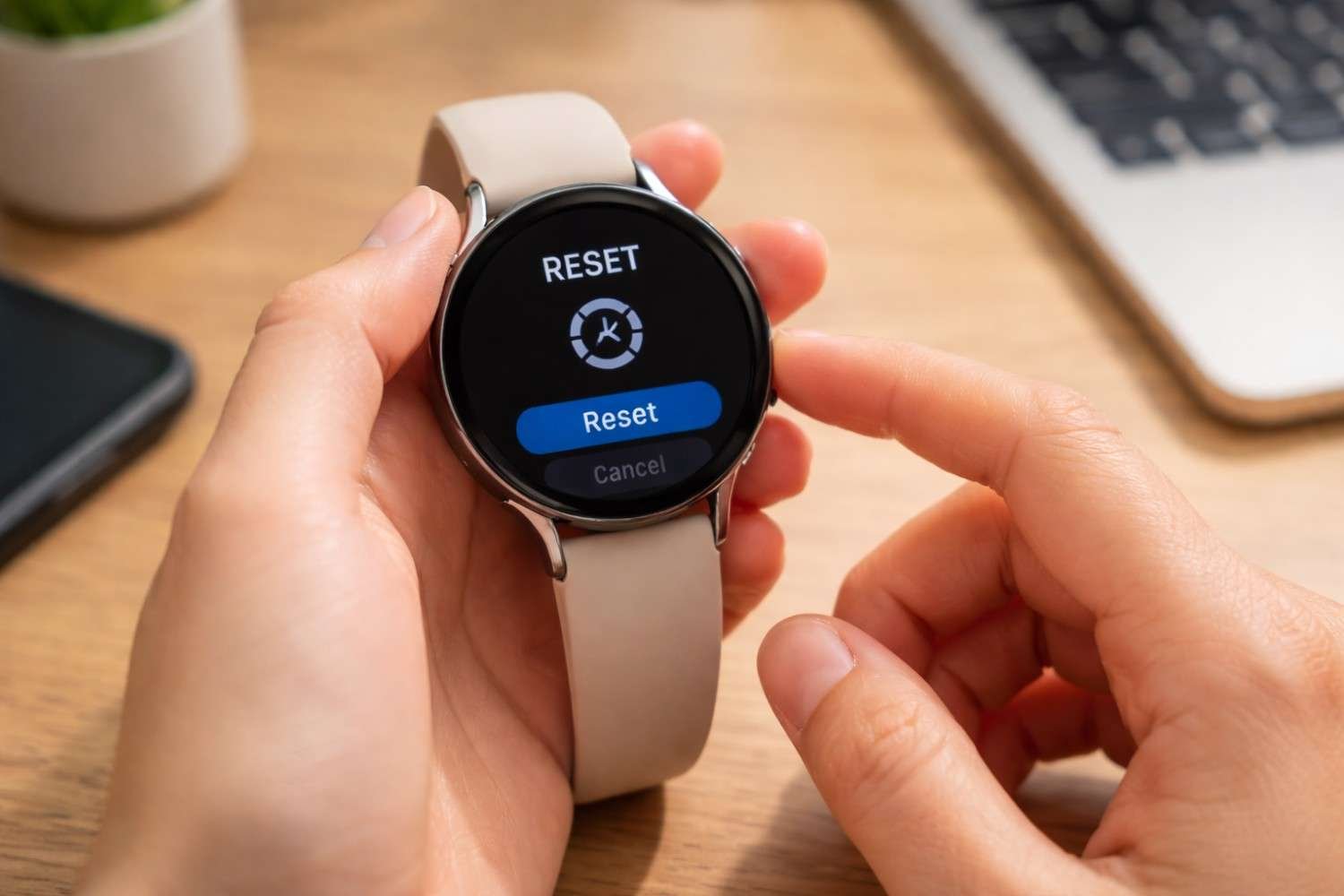
Start by opening the Settings menu on the watch. Scroll until you see the General section. Inside that menu, you will find the Reset option. Tap it and confirm the reset when prompted.
Once confirmed, the watch will begin restoring itself to factory settings. During this process, all personal data stored on the watch is erased. This includes installed apps, saved settings, and customized watch faces. After a few minutes, the watch restarts and returns to the initial setup screen.
Before performing the reset, some models offer the option to back up data to Samsung Cloud. Backups can restore contacts, settings, and some preferences after the watch is paired again.
Reset Samsung Watch Using The Galaxy Wearable App
Sometimes resetting through the smartphone app is easier. This method is especially useful when preparing to disconnect the watch from the phone completely.
Open the Galaxy Wearable app on the connected smartphone. Inside the app dashboard, navigate to Watch Settings. From there, open the General section and locate the Reset option.
After confirming the reset, the phone sends the reset command to the watch. The device then wipes all data and returns to factory settings.
Using the mobile app for the reset has one advantage. It ensures the watch is properly unpaired from the phone, which avoids pairing issues when setting up the watch again later.
Hard Reset Samsung Watch If The Screen Is Locked

Occasionally, the touchscreen becomes completely unresponsive. In some cases, the device may also be locked because the PIN has been forgotten. When that happens, the standard reset method cannot be used.
A hard reset through reboot mode solves this problem.
Start by pressing and holding the Home (Power) button and Back button together until the watch shows a Rebooting message. Once that appears, quickly press the Home button repeatedly to open the reboot menu.
From the menu, scroll until Recovery appears. Select it by pressing and holding the Home button. The watch then restarts and opens the recovery environment.
For newer Wear OS models, another menu appears with the option Wipe data/factory reset. Selecting this option removes all stored data and unlocks the device. After the process finishes, the watch reboots and returns to the setup screen.
This method is commonly used when the watch freezes or when the security lock prevents normal access.
What Happens After Resetting Your Samsung Watch

A factory reset completely clears the device. Everything stored on the watch is removed during the process.
After resetting, the watch returns to its original setup state. This means it behaves exactly like a new device being turned on for the first time.
During the setup process, you will need to:
- Pair the watch with the phone again
- Sign back into your account.
- Restore any backups if available.
- Reinstall apps and watch faces.
Although resetting sounds drastic, it is often the fastest way to resolve stubborn software problems. Many smartwatch issues disappear immediately once the device starts fresh.
FAQs: How to Reset a Samsung Watch
1. How do I reset my Samsung watch if it is frozen?
If the screen is frozen, press and hold the Home and Back buttons until the reboot screen appears. From there, access recovery mode and select the factory reset option.
2. Will resetting my Samsung watch delete everything?
Yes. A factory reset removes all personal data, including apps, settings, watch faces, and stored information.
3. Can I reset my Samsung watch using my phone?
Yes. Open the Galaxy Wearable app, go to Watch Settings → General → Reset, and confirm the reset.
4. Should I back up my watch before resetting it?
Backing up the watch is recommended whenever possible. A backup allows you to restore settings, preferences, and some data after the reset.
Final Thoughts
Smartwatches pack a lot of functionality into a small device, and over time, small software issues can build up. When apps stop responding, connections fail, or the watch becomes sluggish, resetting the device is often the quickest fix. Understanding how to reset a Samsung watch gives you control over those situations instead of relying on complicated troubleshooting steps.
Most users rarely need to reset their smartwatch, but when problems appear, knowing the process can save a lot of frustration.