Internet issues rarely show up at a convenient time. Maybe the connection suddenly drops during a meeting, a streaming session buffers endlessly, or new devices simply refuse to connect. Situations like these often point to one simple solution that many people overlook: resetting the router.
I’ve run into this scenario more than once while troubleshooting home networks. Sometimes a quick restart solves everything. Other times, the router needs a full reset to wipe outdated settings and restore the system to a clean state. Knowing the difference between these two options can save a lot of time and frustration.
Restart vs Reset: Understanding the Difference

Before jumping into the steps, it helps to understand what each option actually does.
A restart (or reboot) refreshes the router without removing your existing Wi-Fi settings. It simply clears temporary memory and reconnects the network.
A factory reset, on the other hand, wipes everything. Your Wi-Fi name, password, parental controls, and customized settings return to the original factory configuration.
A quick comparison makes it easier to decide which option to use:
- Restart (Soft Reset):
- Fixes minor connectivity issues
- Keeps Wi-Fi name and password unchanged
- Takes about 5–10 minutes
- Factory Reset (Hard Reset):
- Restores router to default settings
- Deletes all custom configurations
- Useful when passwords are forgotten or problems persist
Most everyday internet hiccups can be fixed with a restart. A factory reset is better suited for stubborn issues or when you want a completely fresh setup.
When Resetting Your Router Actually Helps

People often reset their router without knowing why it works. In many cases, routers accumulate temporary errors over time. These errors can affect network speed, device connections, and signal stability.
Here are common situations where resetting the router makes sense:
- Frequent connection drops
- Slow speeds despite a stable plan
- Devices failing to connect to Wi-Fi
- Forgotten router password
- Network configuration changes
- Router lights are blinking continuously
If the connection has been unstable for days, starting fresh with a reset often resolves hidden configuration conflicts.
Method 1: Manual Factory Reset Using the Reset Button
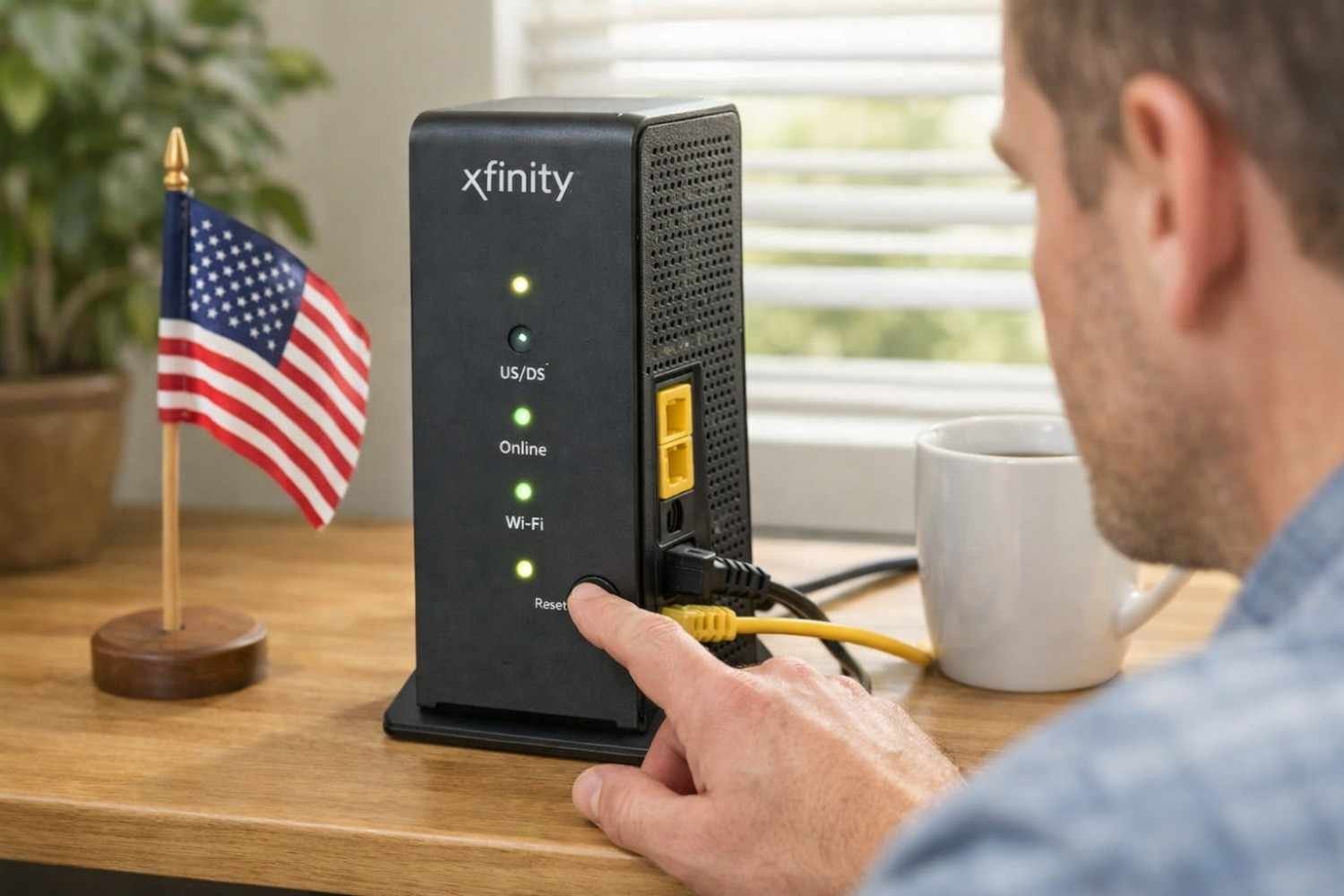
The most reliable way to completely reset the router is by using the physical reset button on the device itself. This method clears all settings and restores the gateway to factory defaults.
Follow these steps carefully:
- Locate the Reset Button
Look for a small recessed pinhole on the back or bottom of the gateway. On some models, the WPS button also functions as the reset button.
- Press and Hold for 30 Seconds
Use a paperclip, pin, or toothpick to press the button. Hold it down for around 30 seconds.
- Wait for the Router to Reboot
The indicator lights will flash or turn off briefly. This signals the reset process has started.
- Allow the Router to Stabilize
The device may take up to 10 minutes to fully restart and reconnect.
- Reconnect to Wi-Fi
After the reset, the Wi-Fi name and password return to the default credentials printed on the router label.
Once completed, the router behaves exactly like it did when it was first installed.
Method 2: Restart the Router Using the Xfinity App

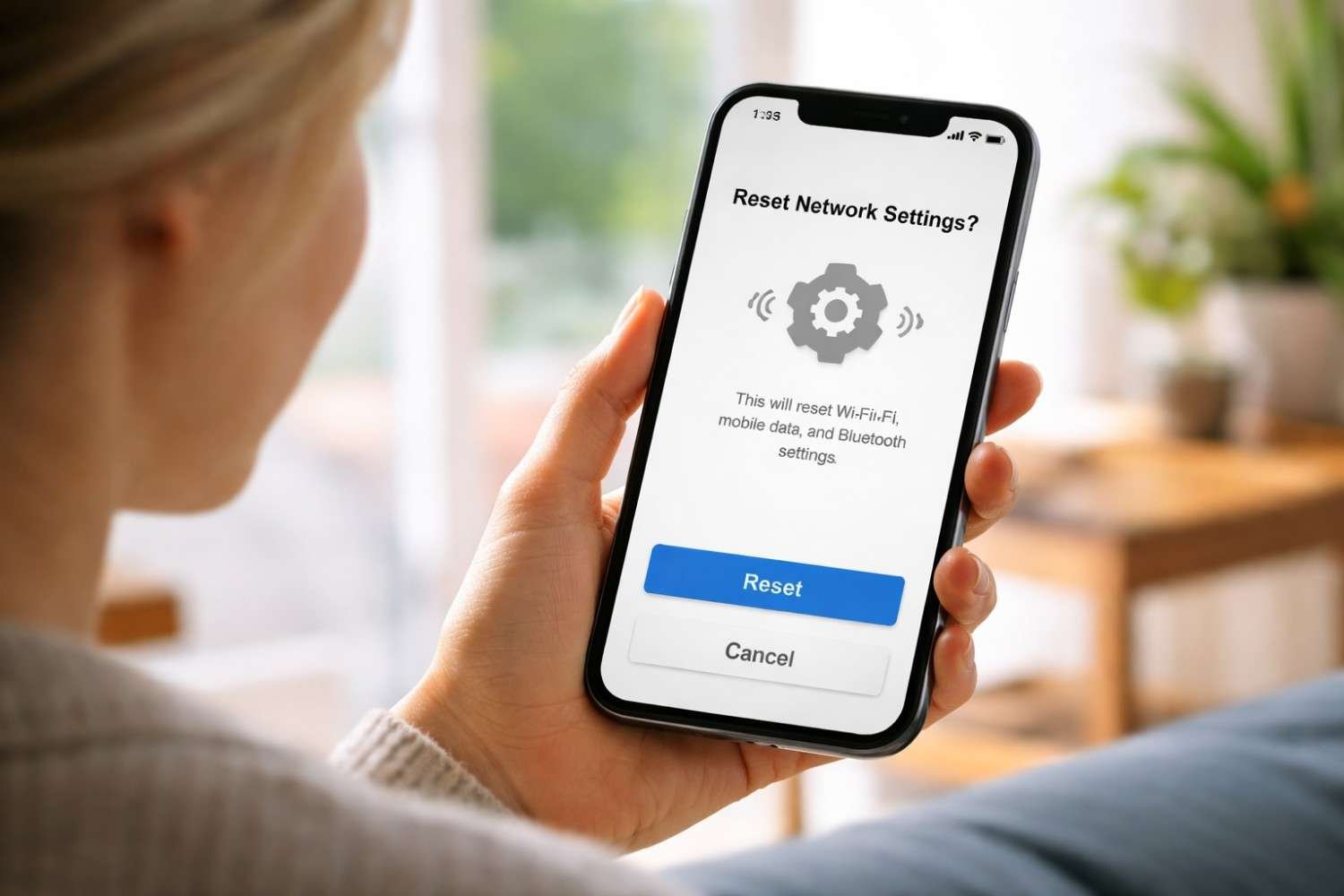
If the network is still accessible and you simply want to refresh the connection, the mobile app offers the easiest solution. This method performs a soft restart without removing your saved Wi-Fi settings.
Here’s how the process works:
- Open the Xfinity App and sign in with your account.
- Navigate to the WiFi section.
- Select Troubleshoot.
- Tap Restart Your Gateway.
- Confirm the action.
The gateway will restart automatically. The process usually takes 5–10 minutes, and your network settings remain unchanged.
This is often the quickest way to resolve minor performance issues.
Method 3: Reset the Router Through the Admin Interface
If you prefer managing network settings from a browser, the router’s admin interface allows both rebooting and factory resetting.
Start by connecting a computer or phone to your Wi-Fi network. Then follow these steps:
- Open a browser and type into the address bar.
- Log in using the router credentials.
Default credentials are typically:- Username: admin
- Password: password
- Navigate to Troubleshooting.
- Select Reset / Restore Gateway.
- Choose one of the following:
- Reset – performs a reboot
- Restore Factory Settings – erases all configurations
This method is useful when troubleshooting specific network settings or configuration conflicts.
Method 4: Power Cycle the Router Manually

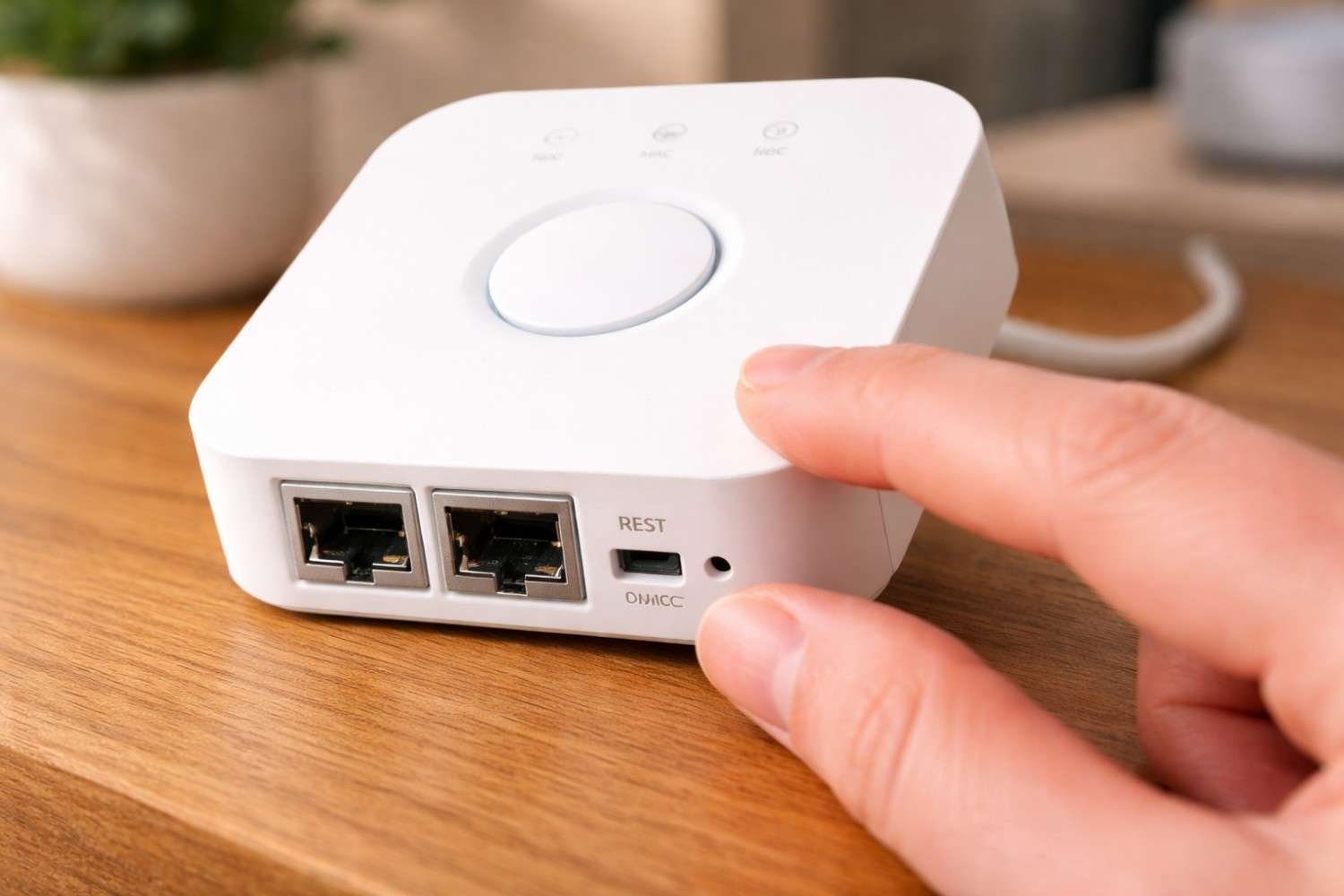
Sometimes the router becomes unresponsive to software commands or buttons. In similar cases, like resetting a Hue bridge, a simple power cycle can refresh the hardware.
Follow these steps:
- Unplug the power cable from the router.
- Wait about 60 seconds.
- Plug the power cable back in.
- Allow the router several minutes to reconnect.
Power cycling clears temporary system memory and often resolves performance slowdowns.
What Happens After a Factory Reset
After a factory reset, the router behaves like a brand-new device. All personalized settings are removed.
This includes:
- Custom Wi-Fi network names
- Password changes
- Guest network settings
- Port forwarding rules
- Parental controls
To get your network running again, you will need to reconnect using the default credentials printed on the router label. Afterward, it’s a good idea to update the Wi-Fi name and password to something secure.
Common Issues After Resetting

A reset usually resolves connection problems, but a few small steps may still be necessary afterward.
For example, devices may need to reconnect manually using the new Wi-Fi credentials. Smart home devices and security cameras may also need to be reconfigured since they rely on saved WiFi passwords.
If the router lights continue blinking or the network fails to stabilize after several minutes, checking the cable connections and modem signal usually resolves the issue.
FAQs: How to Reset Xfinity Router: Step-by-Step Guide for a Fresh Start
1. How long does it take to reset an Xfinity router?
A restart usually takes about 5–10 minutes. A full factory reset can take up to 10 minutes while the router clears settings and reconnects.
2. Will resetting the router delete my Wi-Fi password?
Yes. A factory reset removes all customized settings, including your Wi-Fi name and password. The router will return to the default credentials printed on the device.
3. Is restarting the router the same as resetting it?
No. Restarting simply refreshes the network connection, while resetting restores the router to factory settings and deletes all saved configurations.
4. How often should a router be restarted?
Many people restart their router once every few weeks to clear temporary memory and maintain stable performance.
Final Thoughts
Resetting a router may seem like a simple troubleshooting step, but it’s one of the most effective ways to resolve persistent network issues. Over time, routers store temporary data and configuration changes that can interfere with performance. A reset clears these conflicts and restores the network to a clean state.
If your internet connection has been unstable or devices keep dropping off the network, restarting or resetting the router is often the quickest fix. And when deeper issues arise, a full factory reset provides the fresh start that many networks eventually need.