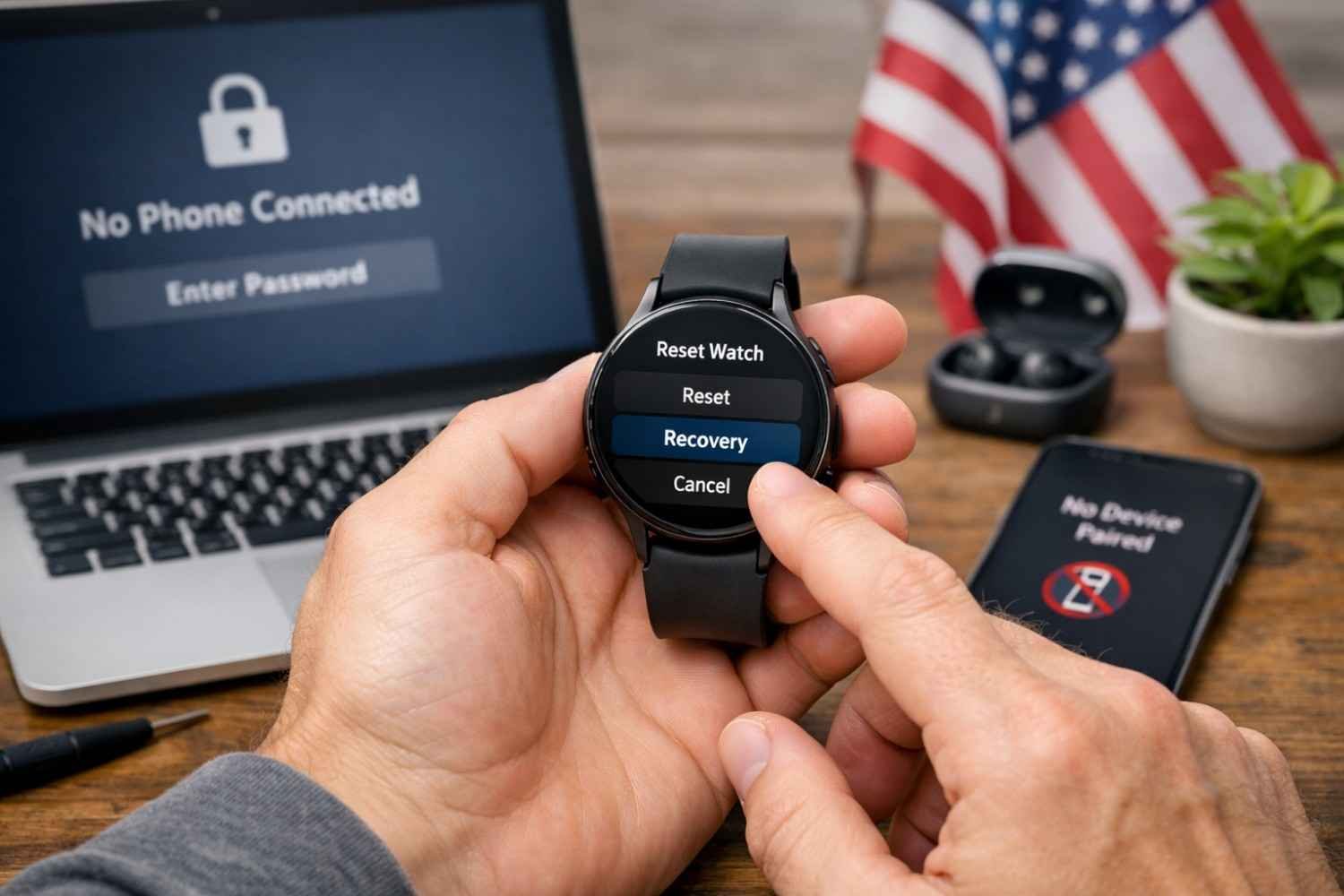
A smartwatch becomes part of your daily routine faster than most people expect. You check notifications during meetings, track workouts, glance at reminders, and sometimes even leave the house without your phone because the watch handles the basics. That convenience disappears quickly when the device locks you out, and you no longer have the paired phone nearby.
This situation is more common than people think. Maybe the phone was replaced, the password was forgotten, or the watch is stuck on the lock screen after an update. The good news is that you can still perform a full reset directly from the watch itself using its physical buttons. It takes a few steps, but the process works even when the device is completely locked.
Why Someone Might Need To Reset A Galaxy Watch

There are a handful of situations where a factory reset becomes the only practical solution. Most of the time, it happens when the watch cannot communicate with the phone that originally paired with it.
Common scenarios include:
- Forgotten PIN, password, or pattern lock
- Lost or replaced paired smartphone
- Watch frozen or stuck on a boot screen
- Device preparing for resale or transfer
- Sync or pairing problems that won’t resolve
A factory reset wipes the watch completely and returns it to its original system state. Afterward, the device behaves like it did when it first came out of the box.
Things To Know Before Resetting The Watch
Before jumping into the reset process, it helps to understand what will happen once the device is wiped.
A factory reset deletes all stored data on the watch. That includes health tracking history, apps, settings, downloaded watch faces, and connection information. After the reset finishes, the watch must be set up again, just like a new device.
There is also a security feature called Factory Reset Protection. This prevents someone from resetting a device and using it without authorization. After the reset completes, the watch may ask for the account credentials that were previously connected to it.
Because of that, the reset solves the lock screen issue but does not bypass account security.
How To Reset Your Galaxy Watch Without A Phone Or Password
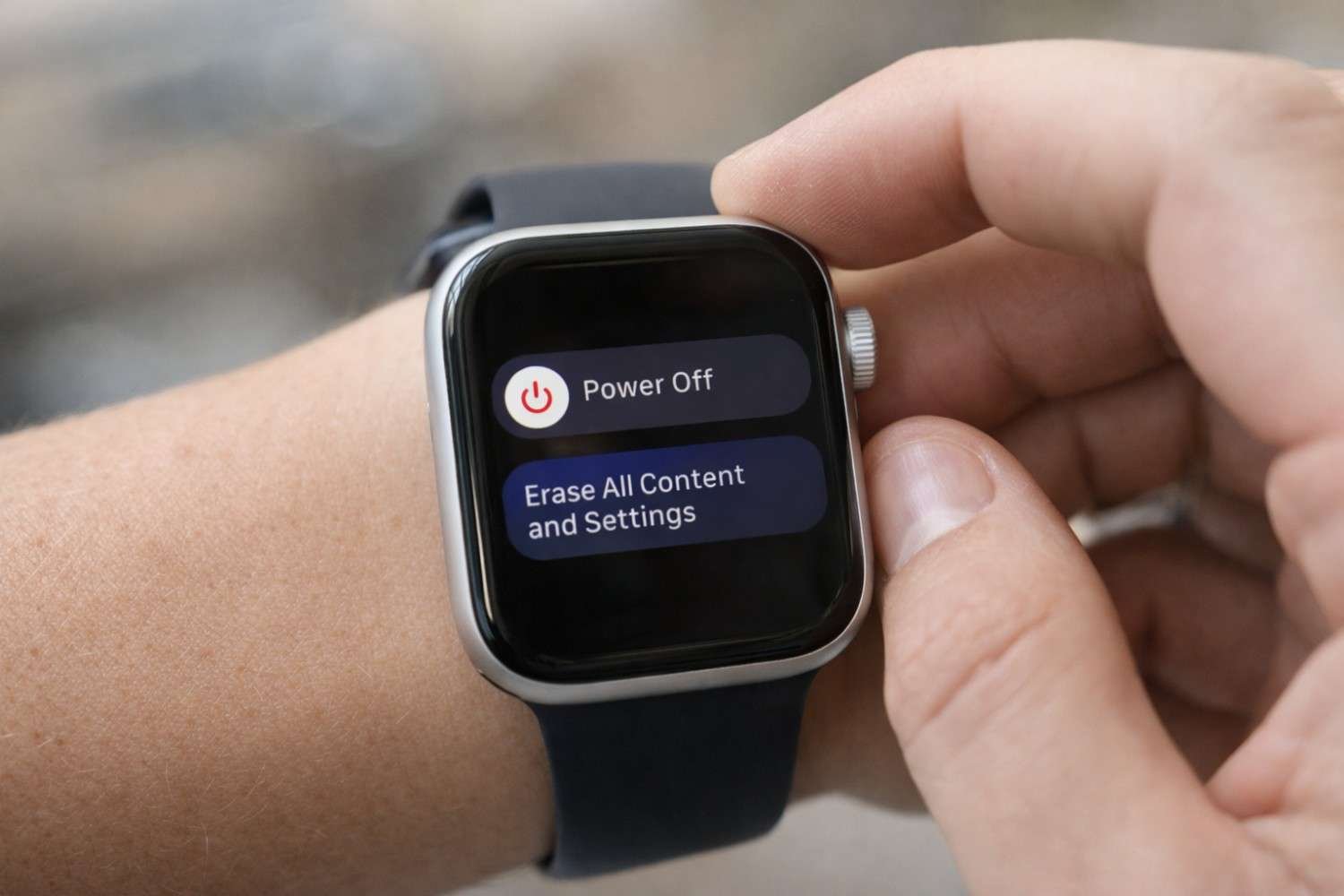
The reset process of apple watch also uses the watch’s hardware buttons to access a hidden reboot menu. The exact steps depend slightly on the watch generation.
Reset Process For Galaxy Watch 4, 5, 6, 7, and Ultra
These newer models run on Wear OS and use a text-based recovery system.
- Enter Reboot Mode
Press and hold both the Home button (top) and Back button (bottom) at the same time. Keep holding until the screen shows “Rebooting…” near the bottom.
- Open The Reboot Menu
As soon as the reboot message appears, release the buttons. Immediately press the Home button repeatedly two or three times until a screen labeled Select REBOOT MODE appears.
- Navigate To Recovery Mode
Press the Home button to cycle through the available options. Continue until Recovery becomes highlighted.
- Select Recovery Mode
Press and hold the Home button to confirm the selection.
- Factory Reset The Watch
After a short delay, a text-based recovery screen appears. From there:
-
-
- Use the Back button or swipe gestures to navigate
- Choose Wipe data/factory reset
- Select Factory data reset to confirm
-
- Restart The Device
Once the reset completes, select Reboot system now. The watch will restart and load the initial setup screen.
Reset Process For Galaxy Watch, Watch3, And Active Series
Older models running the earlier smartwatch system use a slightly simpler reboot menu.
- Press and hold the Home / Power button until the screen displays “Rebooting…”.
- Quickly tap the Home button repeatedly until the Select REBOOT MODE screen appears.
- Tap the Home button again until Recovery is highlighted.
- Press and hold the Home button to confirm.
Once the watch restarts, it will automatically begin the factory reset process.
What Happens After The Reset

When the reset finishes, the device returns to its original setup screen. At that point, the watch behaves like a brand-new device and can be paired with a phone again.
The setup process typically includes:
- Connecting to a smartphone
- Signing into the same account previously used on the watch
- Restoring settings or apps if backups are available
Health data and settings that were not backed up will not return after the reset. Activity history stored on connected fitness services may still remain available once the account reconnects.
Troubleshooting If The Reset Does Not Work
Sometimes the reboot menu does not appear the first time. This usually happens because the timing of the button presses is slightly off.
If the reset menu does not show up, try the following:
- Release the buttons immediately when “Rebooting…” appears
- Tap the Home button quickly multiple times right after releasing
- Ensure the watch battery has at least 20–30 percent charge
- Repeat the process slowly to avoid missing the menu
Another common issue is navigating too quickly through the reboot menu. Cycling through options one at a time with the Home button usually solves this.
FAQs: How to Reset Your Galaxy Watch Without a Paired Phone and Password
1. Can You Reset A Galaxy Watch Without The Password?
Yes. A reset can be performed using the watch’s hardware buttons. Entering reboot mode allows access to the recovery menu, where a factory reset can be performed even when the device is locked.
2. Will Resetting The Watch Remove The Account Lock?
No. The reset removes the lock screen and clears device data, but the watch may still require the previously synced account credentials during setup because of Factory Reset Protection.
3. Does A Factory Reset Delete Health And Fitness Data?
Most local data stored on the watch will be erased. If health information is synced with connected fitness platforms, that information can return once the account reconnects during setup.
4. Can The Watch Be Paired With A New Phone After Resetting?
Yes. After the reset finishes and the watch restarts, it can be paired with a new smartphone just like a brand-new device during the setup process.
Final Thoughts
Smartwatches are designed to work closely with smartphones, so losing access to the paired device can make troubleshooting feel complicated. Fortunately, these devices include a built-in recovery system that allows a full reset even when the watch is locked or disconnected. Once you know how to access the reboot menu, restoring the watch to factory settings becomes a straightforward process.
The key is using the correct button sequence and navigating the reboot menu carefully. With those steps, the watch can return to a fresh setup screen within minutes.